
Help
Everything you need to install Burly, set it up, and get the most out of it, plus fixes for the common problems and help with your Supporter license.
Install and set up
- How do I install Burly?
- Download Burly from the home page and open the .dmg file. Drag Burly into your Applications folder, then open it from there. Every release is signed and notarized by Apple, so macOS opens it without a warning. Burly needs macOS 13 Ventura or later and runs natively on both Apple Silicon and Intel Macs.
- I opened Burly. Where did it go?
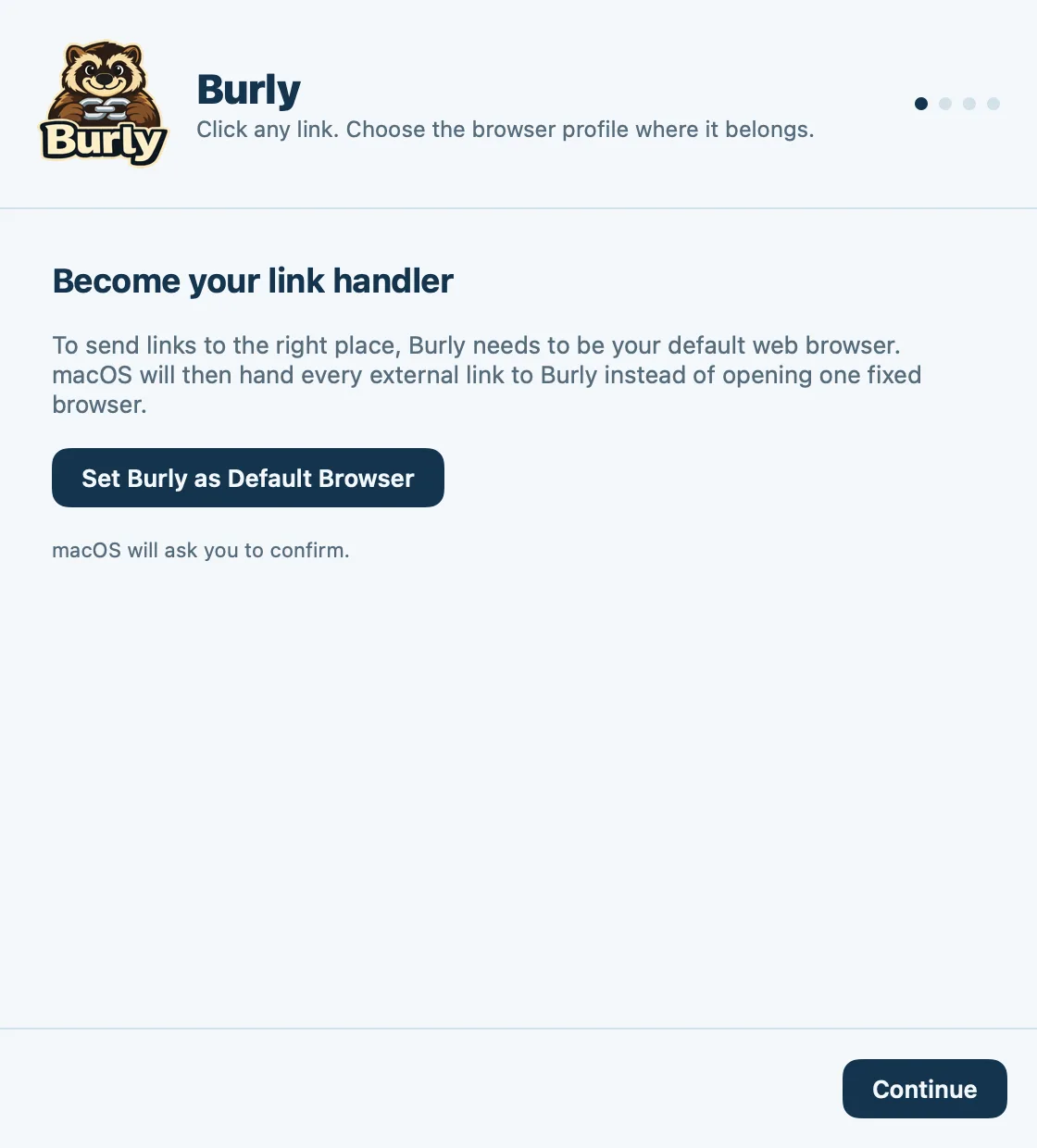
- Burly lives in your menu bar, not the Dock. Look for its icon near the clock, click it for the menu, and choose Preferences… to open Settings. The first time you open Burly, a welcome window walks you through setup: making Burly your default browser, finding your browser profiles, connecting Safari, and choosing how to skip the picker.

- How do I make Burly handle the links I click?
- Set Burly as your default web browser. Click Set Burly as Default Browser in the welcome window, or in Burly’s Settings under System, and confirm when macOS asks. You can also open System Settings, go to Desktop & Dock, and choose Burly under Default web browser. From then on every http and https link goes to Burly first, and Burly hands it to the browser profile you pick.

- Does Burly need to stay running?
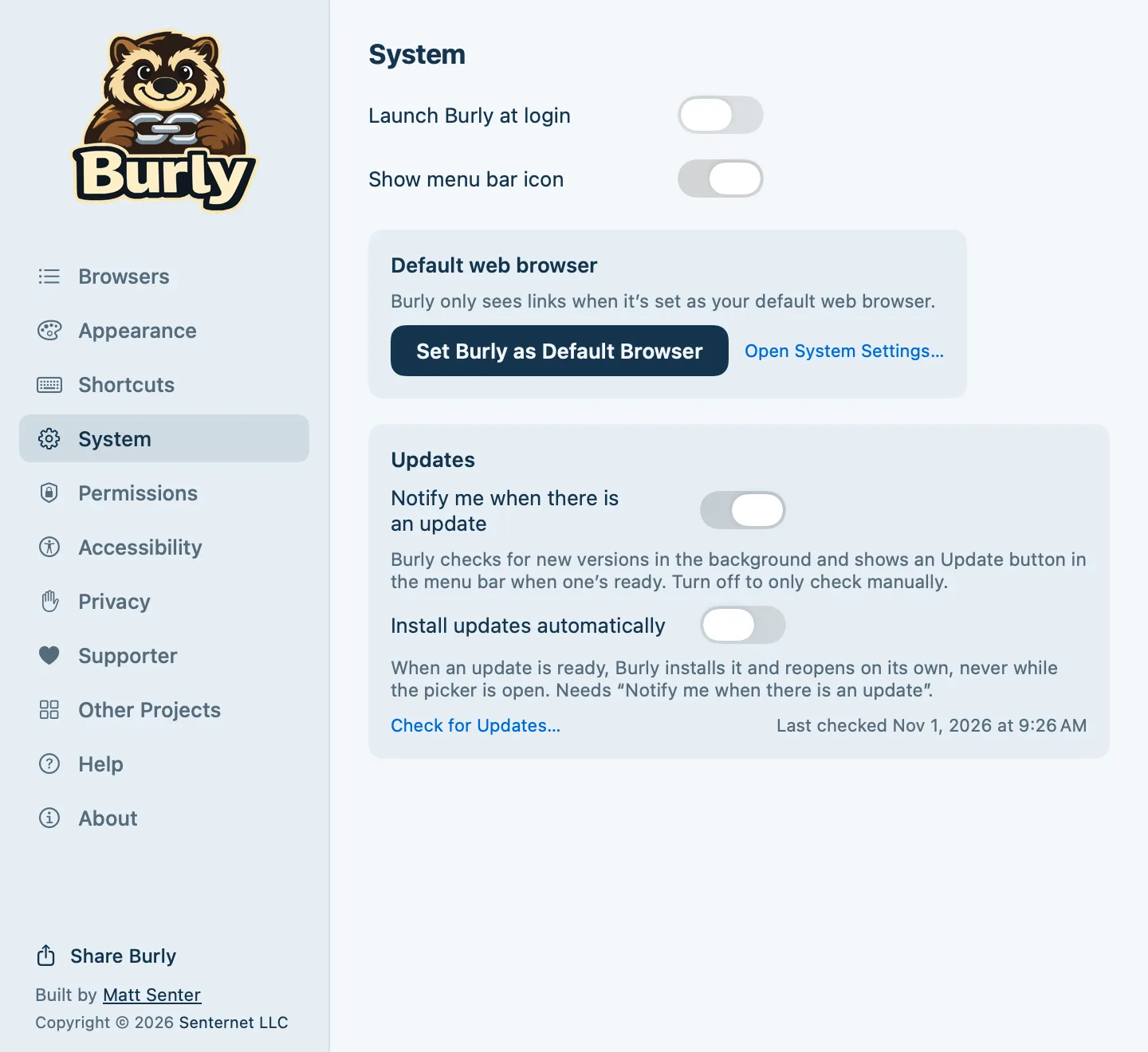
- Burly starts on its own when you click a link, but it works best when it is already running: the picker appears faster and your bypass modifier is never missed. Open Settings, choose System, and switch on Launch Burly at login.
- Which browsers does Burly work with?
- Safari, Chrome, Firefox, Edge, Brave, Arc, Vivaldi, Opera, Dia, Comet, ChatGPT Atlas, Tor Browser, Zen, Chromium, Chrome Beta, Chrome Dev, Chrome Canary, and Firefox Developer Edition. Burly finds every profile in each of them on its own. The supported browsers page has the details.
Permissions and privacy
- Why does Burly ask for Accessibility permission?
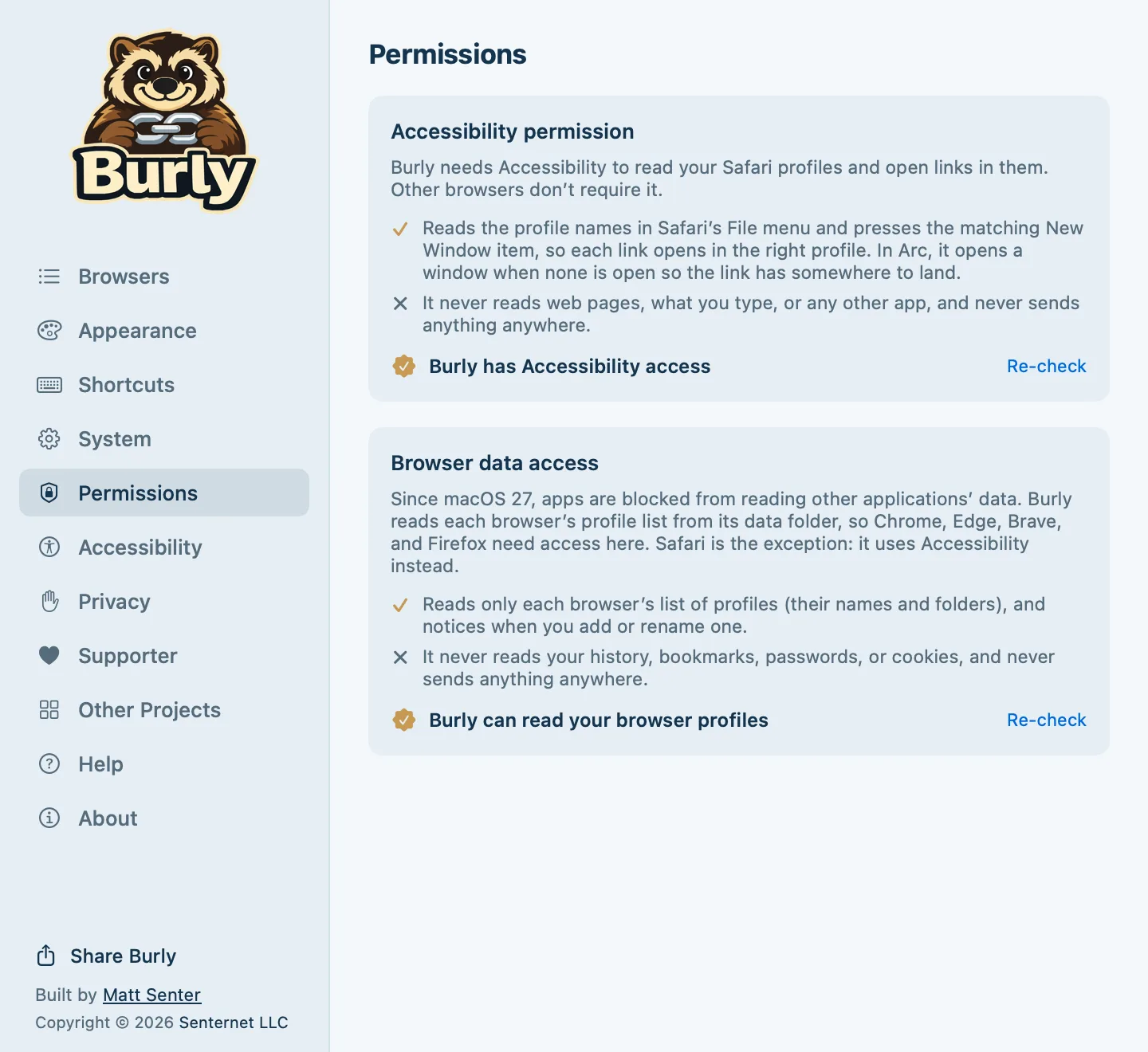
- Only Safari profiles need it. Safari has no public way to open a link in a named profile, so Burly presses Safari’s own New Profile Window menu item through the Accessibility API. Grant it in System Settings, under Privacy & Security, then Accessibility, or click Grant Accessibility… in Burly’s Settings under Permissions. Chrome, Firefox, and the other browsers work without it. The Safari profile switcher guide explains the details.

- Why does macOS ask whether Burly can read other apps’ data?
- Starting with macOS 27, apps need your permission to read another app’s files. Burly reads only each browser’s list of profiles, their names and folders, so Chrome, Edge, Brave, Firefox, and the other browsers need it. It never reads your history, bookmarks, passwords, or cookies. If you said no, open Burly’s Settings, choose Permissions, click Allow in Files & Folders…, and switch on each browser whose profiles you want in the picker.
- Does Burly see the links I open?
- Only long enough to hand each one to the browser you pick. Routing happens entirely on your Mac: no accounts, no analytics, and nothing about your links is ever sent anywhere. Apart from checking for updates, Burly makes no network calls. The privacy policy has the full list.
Using the picker
- What happens when I click a link?
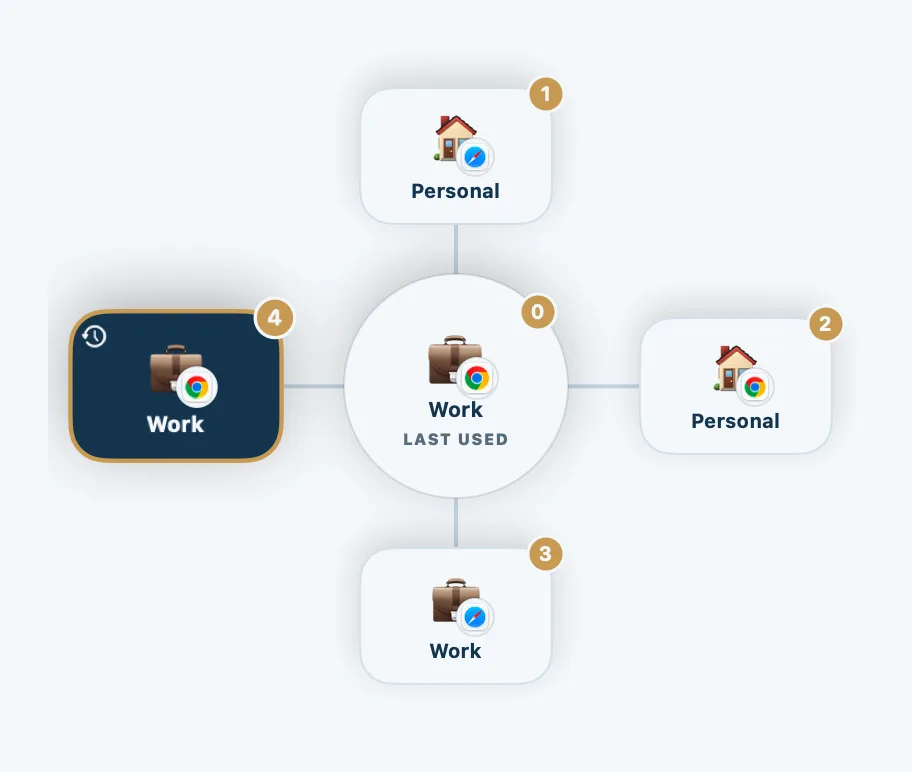
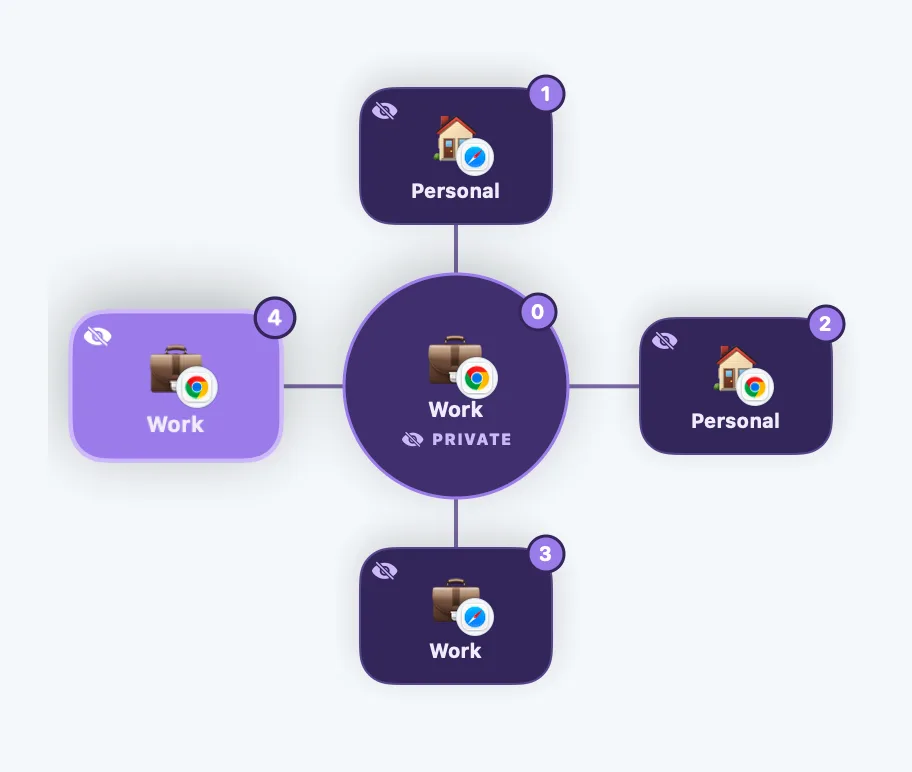
- Burly opens its picker right under your pointer: a ring of petals, one for each browser profile. Click a petal and the link opens in that profile. To cancel, press Escape or click anywhere else.

- Can I choose a profile without the mouse?
- Yes. Every petal shows a key: press it (1 to 9, then A to Z) to open the link there, or press 0 for the profile you used most recently. You can also move between petals with the arrow keys and press Return to choose.
- How do I skip the picker for one link?
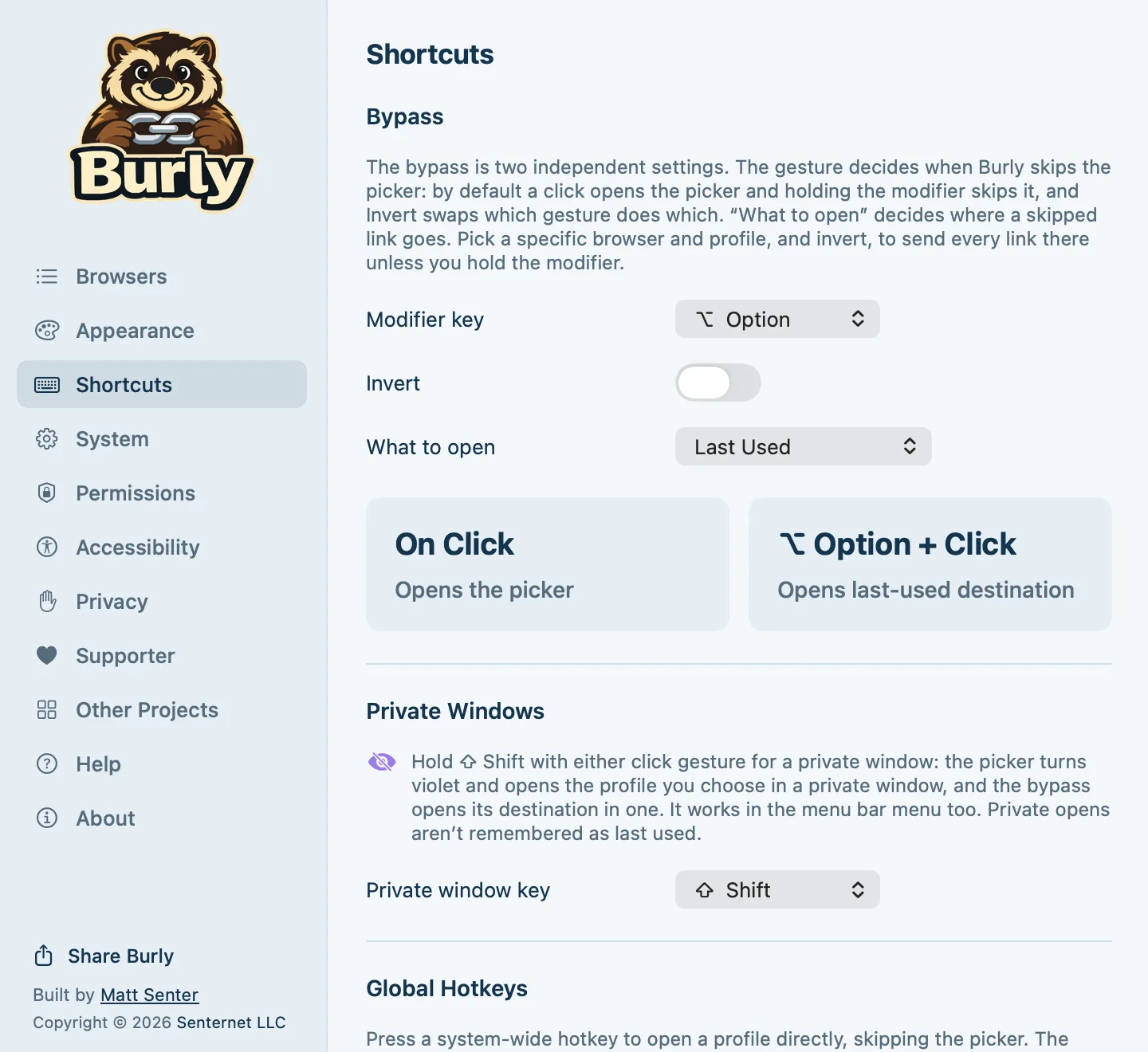
- Hold your bypass modifier while you click, Option unless you’ve changed it. The link goes straight to your last-used profile, or to the one you chose under What to open. Turn on Invert to flip it, so a plain click skips the picker and the modifier brings it up. Both live in Settings, under Shortcuts. See Features for the full setup. Add Shift to open it in a private window instead.

- How do I open a link in a private window?
- Hold Shift as you click the link. The picker turns violet, and the profile you choose opens in a private window. You can also press Shift once the picker is open, or hold Shift with your bypass modifier to send the link straight to your bypass profile in a private window. In the menu bar menu, hold Shift and Open New Tab in… becomes Open Private Window in…. To use another key, open Settings, choose Shortcuts, and change Private window key. Opening a link privately doesn’t change your last-used profile. Opening links in private windows has the walkthrough.

- Can I open a profile from anywhere with a shortcut?
- Yes. Global hotkeys open a new tab in a profile from any app, no link needed. The shortcut is a prefix plus the profile’s key, so with the default Hyper prefix (⌃⌥⇧⌘), Hyper 1 opens your first profile and Hyper 0 opens your most recent one. Change the prefix or turn hotkeys off in Settings, under Shortcuts.
- How do I open a new tab in a specific profile?
- Click the Burly menu bar icon, choose Open New Tab in…, and pick a profile. Each one shows its global hotkey next to it. Hold Shift while the menu is open to get Open Private Window in… instead.
Make it yours
- How do I reorder or hide profiles?
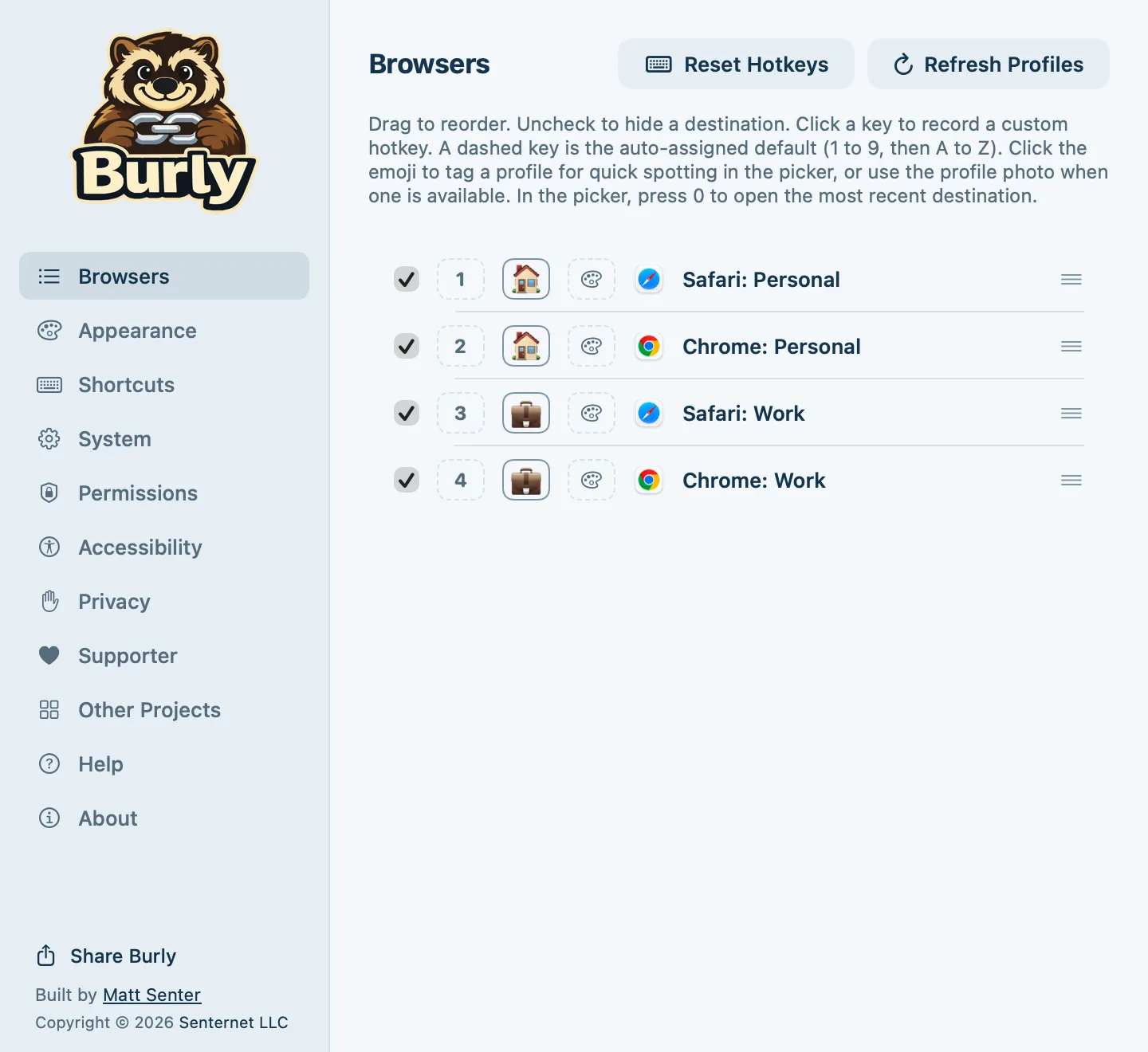
- Open Settings and choose Browsers. Drag a row to move that profile around the picker, and uncheck a row to hide it. Burly remembers your choices as you add or remove profiles in your browsers.

- Can I tell my profiles apart at a glance?
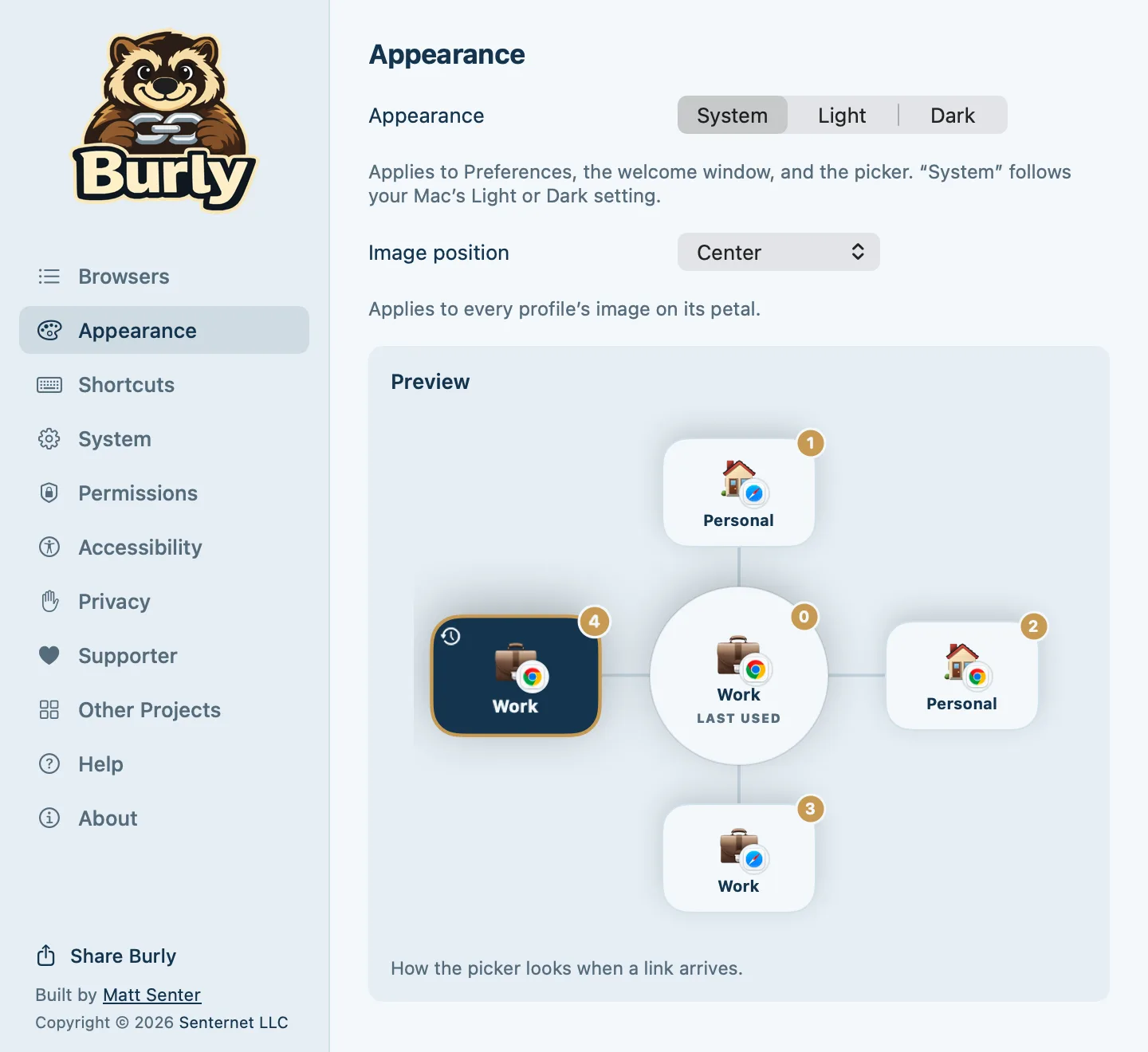
- Yes. In Settings, under Browsers, click a profile’s emoji to choose a new one, or use its profile photo when the browser has one. Click its color swatch to tint its petal. To move the image on every petal, choose Appearance and change Image position.
- Can I change a profile’s key?
- In Settings, under Browsers, click the key next to a profile and press the one you want. A dashed key is the automatic default. Reset Hotkeys puts every profile back on its default. The same key works in the picker and in your global hotkeys.
- Can Burly follow Dark Mode or animate less?
- Under Appearance, choose System, Light, or Dark; System follows your Mac. Under Accessibility, switch on Reduce animations to show the picker fully open instead of springing out from the center. Burly also works with VoiceOver throughout.

Fixing common problems
- Links open in a browser without the picker.
- Burly is probably no longer your default browser; some browsers ask to take that back when they update. Open Settings, choose System, and check the Default web browser card. If you were holding your bypass modifier, or Invert is on, skipping the picker is expected.
- A link meant for a Safari profile opened in the wrong window.
- Check two things: Safari is already running, and Burly is switched on under Privacy & Security, then Accessibility. Burly opens each profile through Safari’s own menu, so both have to be true.
- A browser profile is missing from the picker.
- Burly finds profiles on its own and picks up changes as you make them. For Safari, switch to Safari once so Burly can look again. For other browsers on macOS 27, check that the browser is switched on under Permissions in Burly’s Settings. You can also click the Burly menu bar icon and choose Refresh Browser Profiles. If the profile still isn’t there, open Settings, choose Browsers, and check that it isn’t unchecked. The supported browsers page lists every browser Burly can route to.
- Why are some browsers dimmed in private mode?
- Arc, Dia, and ChatGPT Atlas can’t open private windows from Burly. Arc and Dia can open an incognito window, but they don’t let another app load a link into it, and handing them the link the usual way opens it in an ordinary window. Burly never opens a private link in an ordinary window, so these browsers are dimmed while you hold the private-window key. Chrome and the other Chromium browsers, Firefox, Zen, and Safari all work. Tor Browser works too, because every window it opens is already private. Safari needs Accessibility permission, and if Safari’s private browsing is locked, unlock it first.
- How do I update Burly?
- Burly keeps itself up to date. When a new version is ready, an Update item appears at the top of the menu bar menu. To check now, click the menu bar icon and choose Check for Updates… While “Notify me when there is an update” is on, it checks in the background about once a day. That option starts off on a new install. You can turn background checks on or off in Settings, under System. The privacy policy explains what each check sends. The release notes list what changed. To have Burly install updates for you, turn on Install updates automatically in the same place.
- How do I uninstall Burly?
- First choose another default web browser in System Settings, under Desktop & Dock, so your links have somewhere to go. Then click the Burly menu bar icon, choose Quit Burly, and drag Burly from your Applications folder to the Trash. You can also remove Burly from the Accessibility list under Privacy & Security.
Supporter license
- What does becoming a Supporter do?
- One $1.99 payment turns off the small promotions in the picker and lets you reach me directly through Contact Support. Every feature is free for everyone. See Pricing for the details.
- I paid, but Burly still shows promotions.
- Click Activate on the page you landed on after checkout. If that didn’t open Burly, copy the license token from the same page and paste it in Burly’s Settings, under Supporter. Both need Burly 1.4.0 or later; if you don’t see a Supporter section in Settings, click the Burly menu bar icon and choose Check for Updates…
- I reinstalled Burly or set up a new Mac.
- Go to Restore a License and enter the email you paid with. I send a code, and your license comes right back.
Still stuck?
Supporters can contact support and reach me directly. Everyone is welcome to ask in the Discord below. Either way, click Copy Version Info in Burly’s Settings, under About, and paste it in so I can help faster.
Join the Burly community on Discord
Ask questions, report bugs, share your profile setups, and hear about new releases first. It's free to join and open to everyone.
Join the Discord